How to Screen Crypto on CoinDCX (Step-by-Step Guide)
CoinDCX lists hundreds of trading pairs. Checking each one by hand for an RSI reversal or a volume breakout is impossible: by the time you reach the bottom of the list, the setups at the top have already moved.
A screener solves this. Instead of reading charts one at a time, you describe the setup once and let software test every CoinDCX pair against it.
This guide shows you exactly how to screen crypto on CoinDCX using BitLogic, a free crypto screener app (this walkthrough uses the Android version; a Windows version is also available). You will build a strategy from scratch, scan the CoinDCX market with it, and set up alerts so you are told when a setup appears, including alerts delivered straight to Telegram.
Why Screen CoinDCX Instead of Watching Charts
Manual chart-watching fails for three reasons:
- Scale. CoinDCX supports hundreds of spot and futures pairs. Nobody checks them all.
- Timing. A 15-minute breakout does not wait for you to scroll to it.
- Consistency. Your rules drift when you are tired. Software applies identical rules every scan.
A screener flips this around: you define the conditions, and the app searches the whole exchange. You only look at charts that already match your setup.
What You Need Before You Start
| Requirement | Detail |
|---|---|
| App | BitLogic (Android) |
| Account | Optional. Guests get 3 scans per 24 hours; a free account removes the limit |
| Exchange | CoinDCX (BitLogic also supports Binance, Bybit, OKX, Kraken, KuCoin, VALR, Bitstamp and Upbit; see all supported exchanges) |
| Markets | CoinDCX Spot and Futures |
| Timeframes | 1m, 5m, 15m, 30m, 1h, 2h, 4h, 6h, 8h and 1d |
BitLogic reads public CoinDCX market data. It does not connect to your CoinDCX account, hold funds, or place trades: it finds setups and tells you about them. You place trades yourself on CoinDCX.
How to Screen Crypto on CoinDCX: Step by Step
Step 1: Select CoinDCX and Your Market
Open the Strategy tab and choose Build My Own. At the top, set:
- Exchange: CoinDCX
- Market: Spot or Futures
- Strategy Mode: Single Timeframe (or Multi-Timeframe for confirmation across two)
- Candles: the timeframe you trade, for example 1h
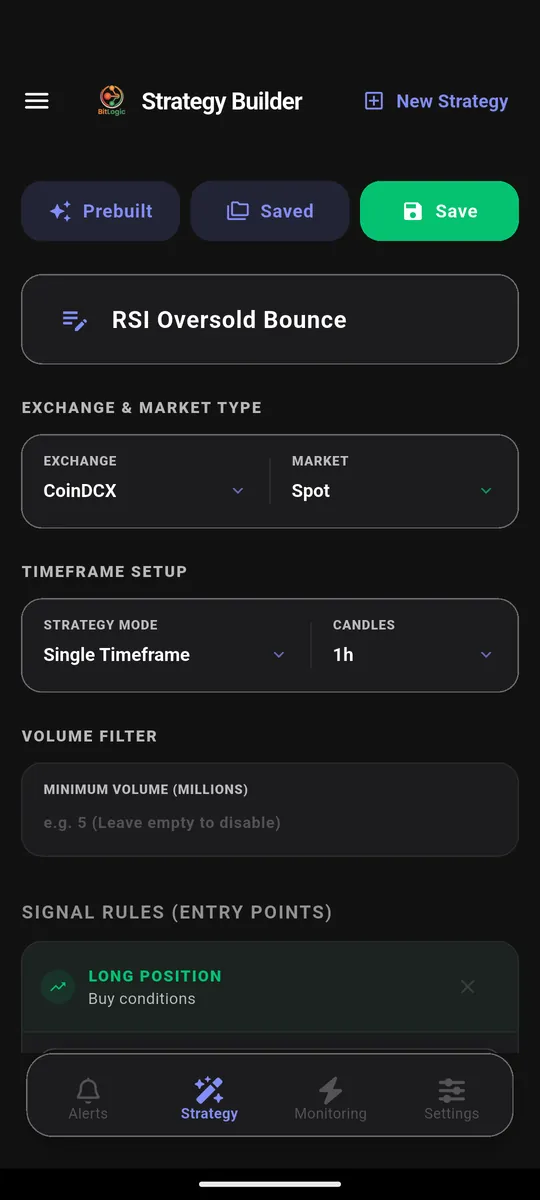
There is also a Volume Filter. Setting a minimum 24-hour volume is one of the most useful filters on any exchange: it removes thin pairs where a signal is noise rather than opportunity.
Step 2: Add Your Entry Conditions
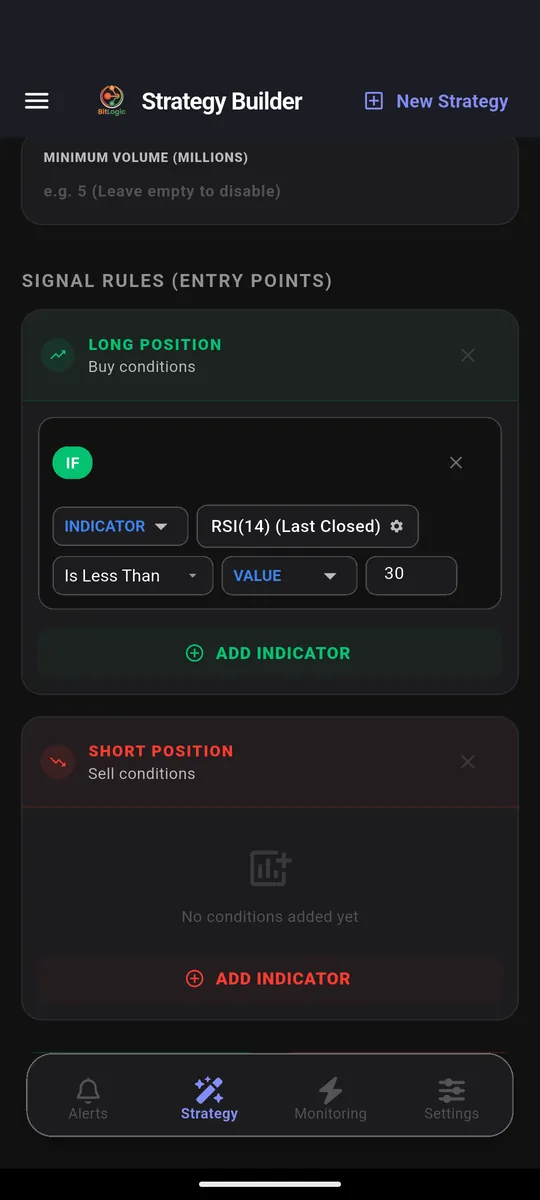
Scroll to Signal Rules (Entry Points). You get a Long Position block for buy conditions and a Short Position block for sell conditions.
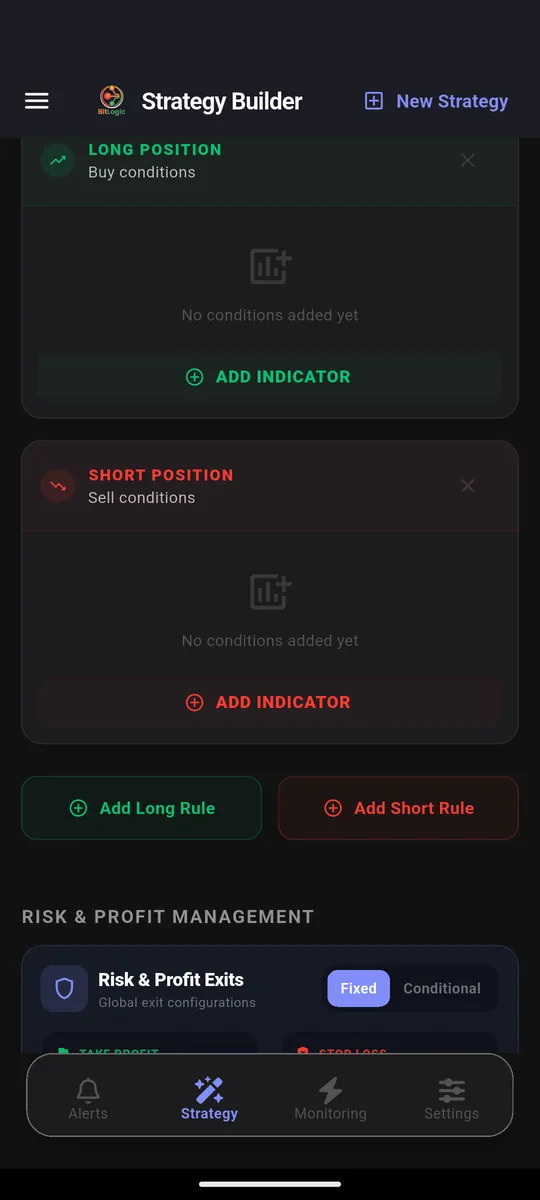
Tap Add Indicator and search the library. BitLogic includes the standard technical toolkit (RSI, EMA, MACD, Bollinger Bands, Stochastic RSI, SuperTrend, VWAP, Ichimoku, OBV), plus candlestick patterns such as Hammer, Engulfing and Doji, and raw price action like Close, High, Low and Volume. You can see the full breakdown in our supported indicators overview.
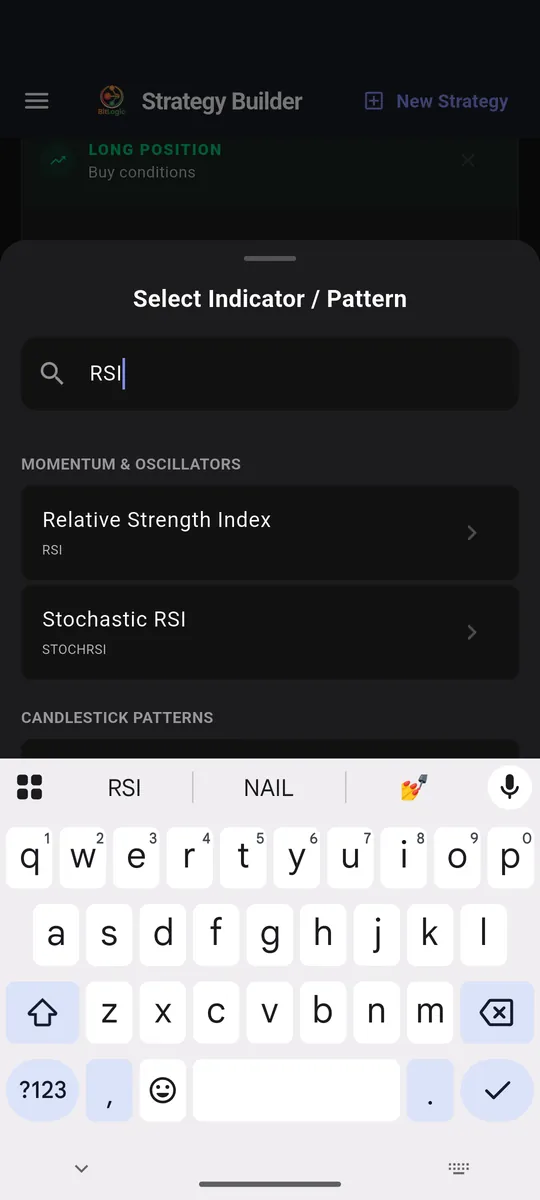
Pick Relative Strength Index. Each indicator has its own settings: period, price source, and which candle to read.
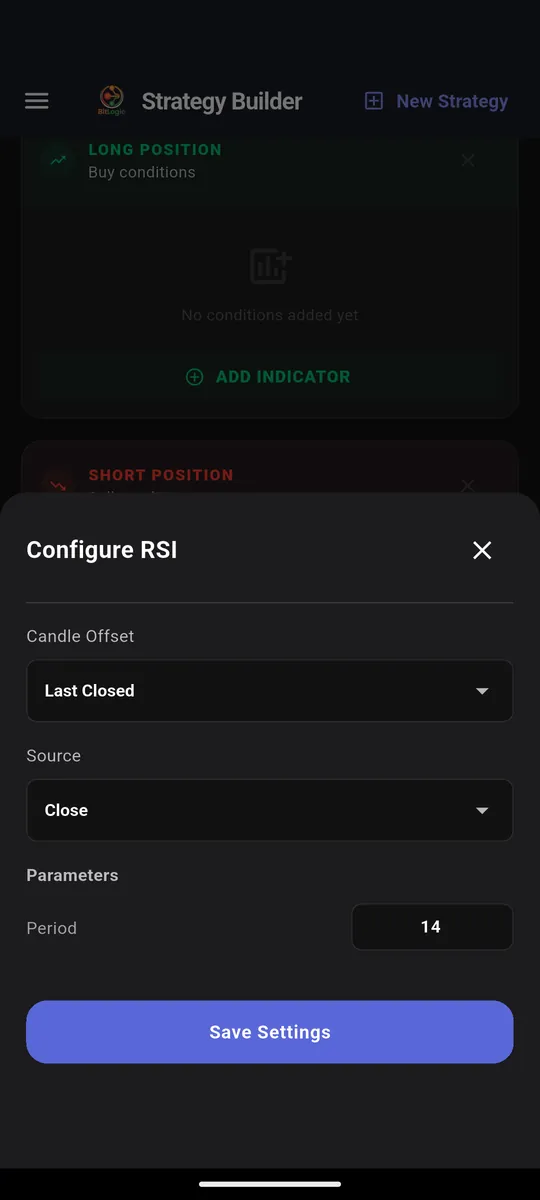
Candle Offset deserves attention. "Last Closed" evaluates the last completed candle, which is what you want for a rule that should not change mid-candle. Reading the live candle instead means a condition can flip repeatedly before the candle closes.
Save, then choose the comparison (Is Less Than, value 30) and the finished rule reads back in plain language:
Add a second condition (say, price above its 200 EMA) to require a trend filter, and a pair must satisfy both before it is reported. That is the same idea behind our RSI Reversal Bounce strategy, which pairs an RSI cross with a 50 EMA trend filter and volume confirmation.
Step 3: Set Your Exits
Below the rules, Risk & Profit Management holds your Take Profit and Stop Loss, either as fixed percentages or as conditional exits driven by indicators. Define exits before you scan. Deciding them after you are in a position is how small losses become large ones.
Step 4: Run the Scan
Name the strategy, tap Save, then tap Scan Market Now. BitLogic pulls candles for every CoinDCX pair that passes your volume filter, evaluates your rules against each one, and returns only the matches.
The scan below ran across 400 CoinDCX spot pairs and finished in 17 seconds, returning three that met the rule:
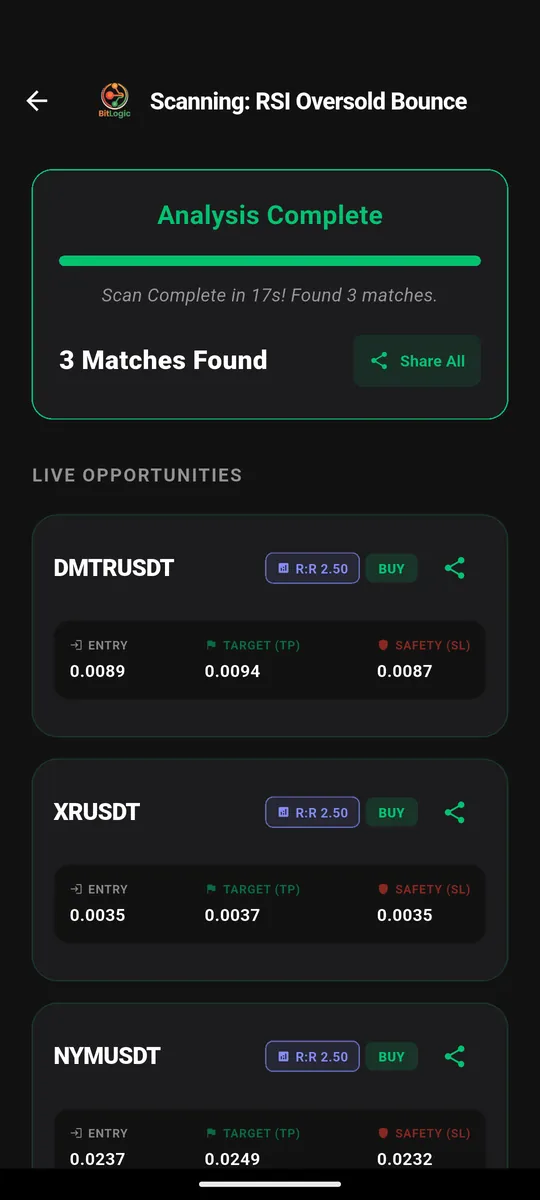
Each match shows the pair, the direction, and an entry, target and stop derived from your Risk & Profit settings, so you can open those specific charts on CoinDCX and decide. The pairs shown here are simply what matched at the moment of that scan; they are examples, not recommendations.
In a hurry? The Prebuilt button loads 10 ready-made strategies: EMA Cross Momentum, RSI Reversal Bounce, MACD Zero Cross, Bollinger Band Squeeze, SuperTrend Flip, StochRSI Cross, VWAP Pullback Bounce, Volume Surge Breakout, Ichimoku Cloud Break and OBV Divergence Reversal. Load one, point it at CoinDCX, and scan. Treat these as starting points to adapt, not as guaranteed systems.
Set Alerts So You Stop Watching the Screen
Screening tells you what is happening now. Alerts tell you the moment it happens.
The Alerts tab carries five market-wide feeds, each with its own threshold (see the full list of BitLogic alert types):
- Liquidation Monitor: whale liquidations, live from Binance
- Volume Spikes: candle volume far above its recent average
- Price Anomalies: sudden pumps and dumps on high-volume pairs
- Funding Rates: extreme funding, when positioning is heavily one-sided
- Open Interest: positions opening or unwinding fast
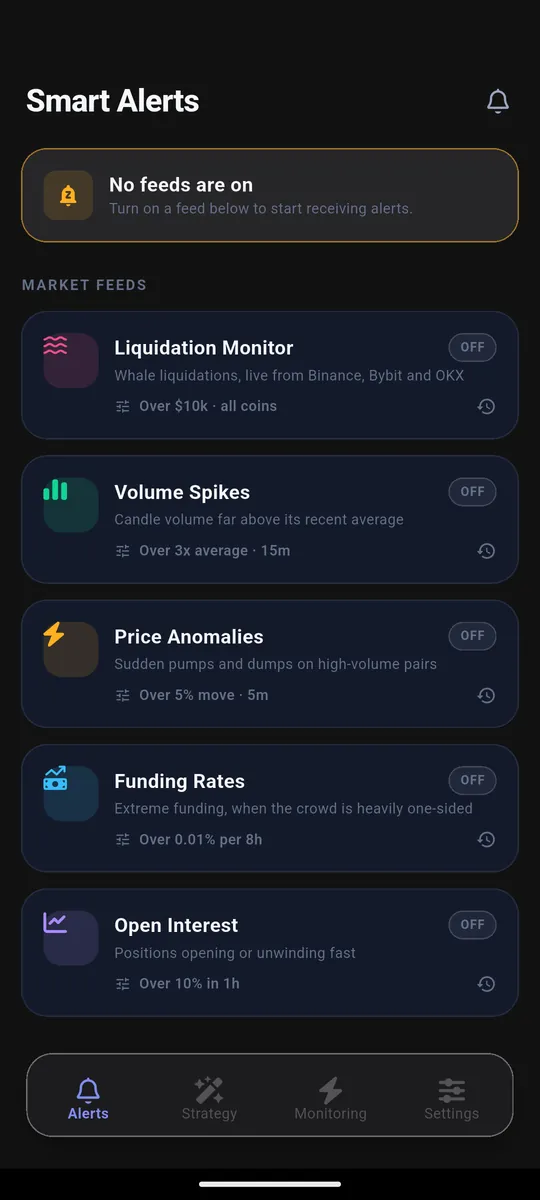
Note the distinction: these five feeds track market-wide activity across major derivatives venues, which is useful context for any market including CoinDCX. Alerts for your own strategy on CoinDCX come from Live Monitoring, next.
Tap any feed to set its threshold, for example liquidations over $10,000, or a volume spike over 3× average on the 15-minute candle. Set them where they are meaningful to you; a threshold too low turns a useful feed into noise.
Run Live Monitoring on CoinDCX
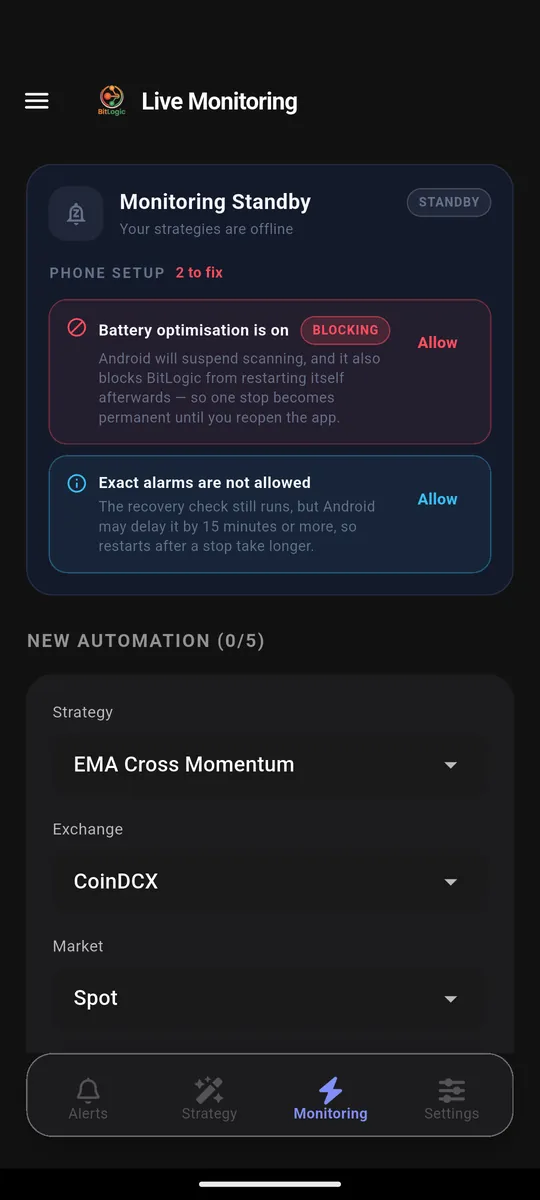
A manual scan is a snapshot. Live Monitoring runs your strategy on repeat in the background. Open the Monitoring tab, pick your saved strategy, set Exchange to CoinDCX, choose the market, and start it.
- Run up to 5 strategies at once
- Choose your scan interval to match your timeframe
- Scanning continues when the app is closed, and you get a push notification when a setup triggers
The screen also runs a Phone Setup check. This matters more than it looks: Android aggressively suspends background apps, so if battery optimization is on, scanning stops and your alerts stop with it. If the panel flags something, fix it. Otherwise monitoring will quietly die a few hours in.
Pro: Get CoinDCX Signals Straight to Telegram
Push notifications get buried. Telegram does not.
With BitLogic Pro, every alert your strategy produces is also delivered to your Telegram account, so signals arrive wherever you already read messages: phone, desktop or web.
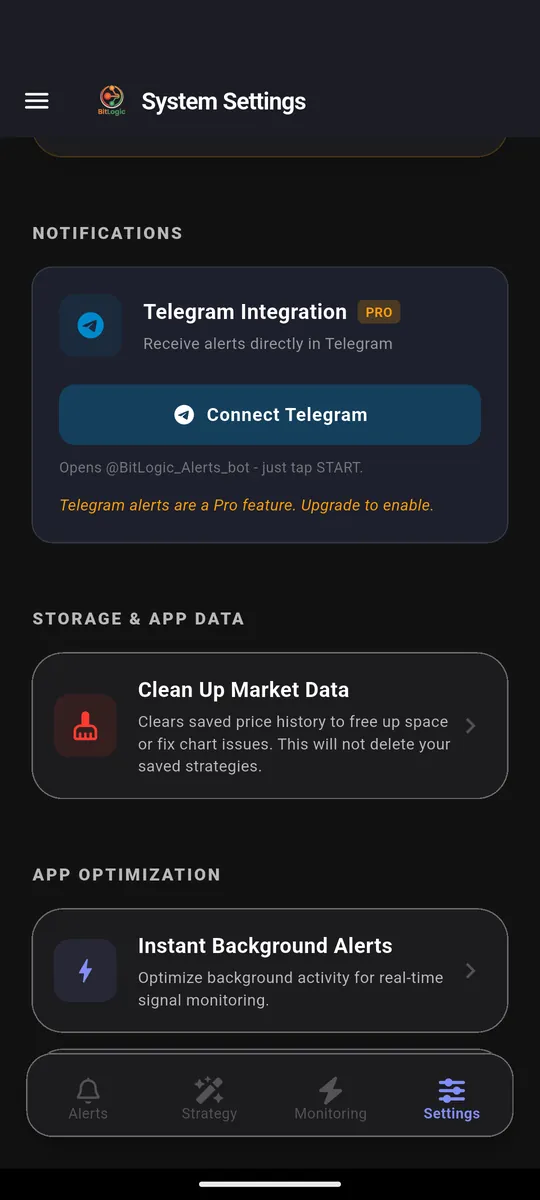
Connecting takes one tap. In Settings → Telegram Integration, tap Connect Telegram. It opens @BitLogic_Alerts_bot directly; press START and you are connected. No username to type, no bot to search for.
Pro includes:
- Instant Telegram alerts for your strategy signals and alert feeds
- Start live monitors without watching an ad
- An ad-free app, with no rewarded ads or banners
- Priority support
- A 14-day free trial, then ₹480/month or ₹4,800/year (2 months free) in India
See BitLogic Pro on Google Play.
A Realistic Note on Screeners
A screener finds setups that match your rules. It does not predict what price does next, and no indicator combination removes risk from trading.
Use it to narrow hundreds of CoinDCX pairs down to a handful worth your attention, then apply your own judgment, position sizing and risk management. Nothing here is financial advice. For exchange-side details such as trading fees, refer to CoinDCX's official fee structure.
Screenshots were captured from BitLogic v1.0.35 on Android, including a live scan run against CoinDCX. Educational content only, not financial advice. Trading cryptocurrencies involves substantial risk of loss.
FAQ
Can I screen CoinDCX pairs for free?
Yes. BitLogic is free to download and includes the strategy builder, scanning and alerts. Guests get 3 scans per 24 hours; creating a free account removes the limit. Pro adds Telegram delivery, an ad-free experience, live monitors without an ad and priority support.
Does BitLogic connect to my CoinDCX account or place trades?
No. It reads public CoinDCX market data only. It never touches your account, your funds or your API keys, and it does not place orders. You execute trades yourself on CoinDCX.
Which timeframes can I screen on CoinDCX?
1m, 5m, 15m, 30m, 1h, 2h, 4h, 6h, 8h and 1d. You can also run Multi-Timeframe mode to require confirmation on a second timeframe.
Can I screen CoinDCX Futures as well as Spot?
Yes. Choose Spot or Futures in the Market dropdown when you build the strategy or start Live Monitoring.
Why did my live monitoring stop overnight?
Almost always Android battery optimization suspending the app. Open the Monitoring tab and clear anything flagged under Phone Setup, particularly "Battery optimization is on".
Do I need Pro to get alerts?
No. Push notifications and the five alert feeds work on the free plan. Pro adds delivery to Telegram, an ad-free experience, live monitors without an ad and priority support.
Start Screening CoinDCX Today
Screening turns an unmanageable list of CoinDCX pairs into a short list that matches rules you chose. Build the strategy once, scan on demand, and let Live Monitoring watch the market while you do something else.
Download BitLogic free on Google Play to build your first CoinDCX strategy in under five minutes, and start your 14-day Pro trial when you want signals on Telegram. Prefer to look around first? Try the free web screener. Wondering how BitLogic fits alongside other tools? See our BitLogic vs TradingView vs 3Commas comparison.